
Opening a package’s signing link (/sign/[token]) takes a recipient through any required gates, then into the signing experience itself.
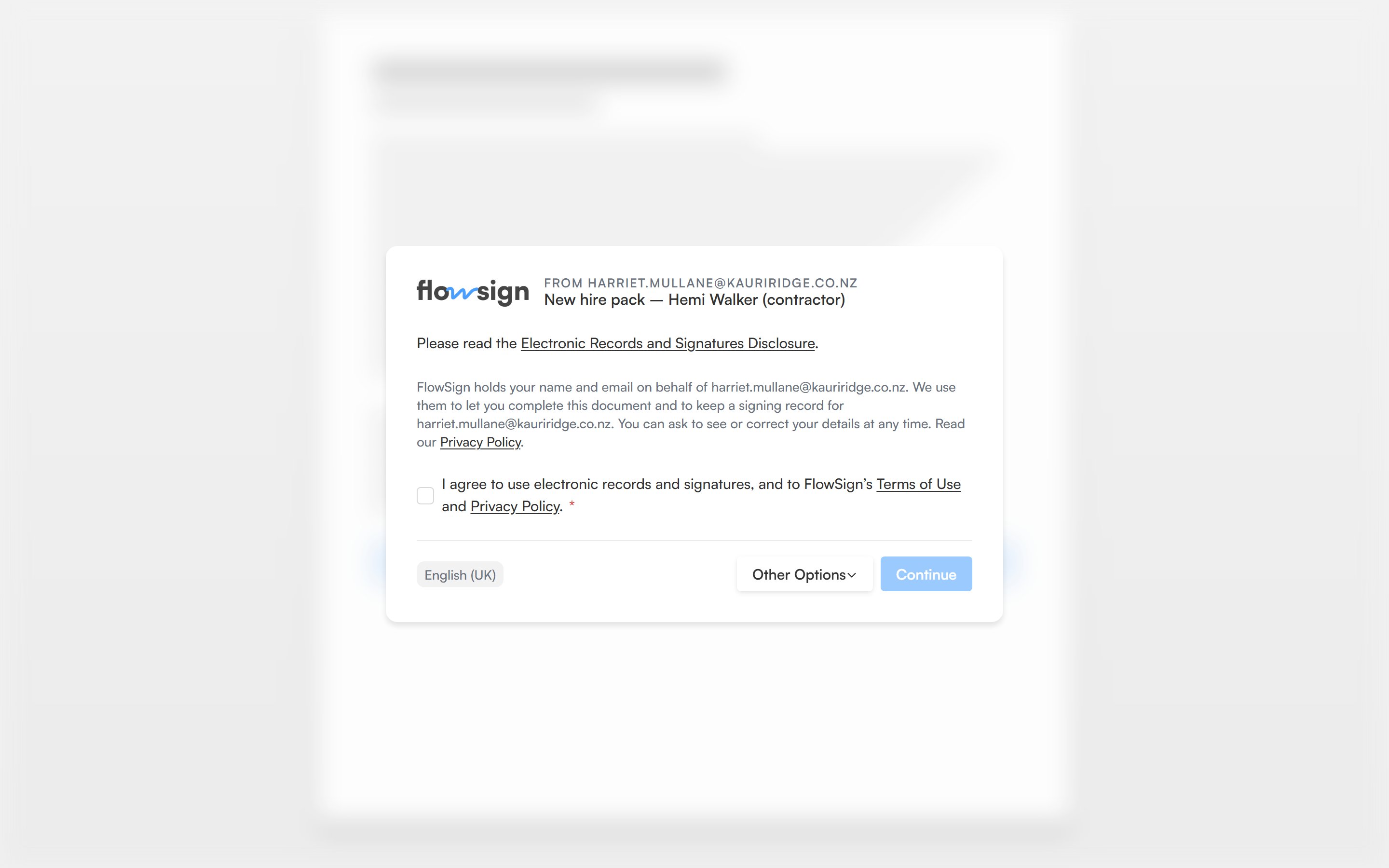
The signing link's consent gate, asking the recipient to agree to sign electronically

The consent gate, one of the steps a recipient can meet before their documents.

Gates

Depending on how the package or template was configured, a recipient may see one or more of these before reaching their documents:
  • An access code gate, if the package is password protected.
  • An SMS code gate, for SMS verification.
  • A consent gate, agreeing to sign electronically before viewing documents.
  • Workflow questions, if the sender’s workflow asks something before signing starts.
An invalid or expired link shows an explanatory state instead of any of the above.

Signing

Once past the gates, the recipient sees their assigned documents with their fields highlighted. A left rail (or a mobile sheet on small screens) lists their fields and lets them jump between unfilled ones. Filling a signature or initial field opens a capture modal (draw, type or upload). A Finish Signing button completes the session once every required field is filled; it reads Submitting… while it saves.

Declining

A recipient can decline instead of signing. Decline to Sign (“Pick a reason so the sender knows how to follow up. This can’t be undone.”) asks for a Reason before confirming. Declining cannot be undone.

Completion

After finishing, a completion screen confirms the signature and explains What happens next (for example, other recipients still to act, or the finished document being emailed once everyone is done).