

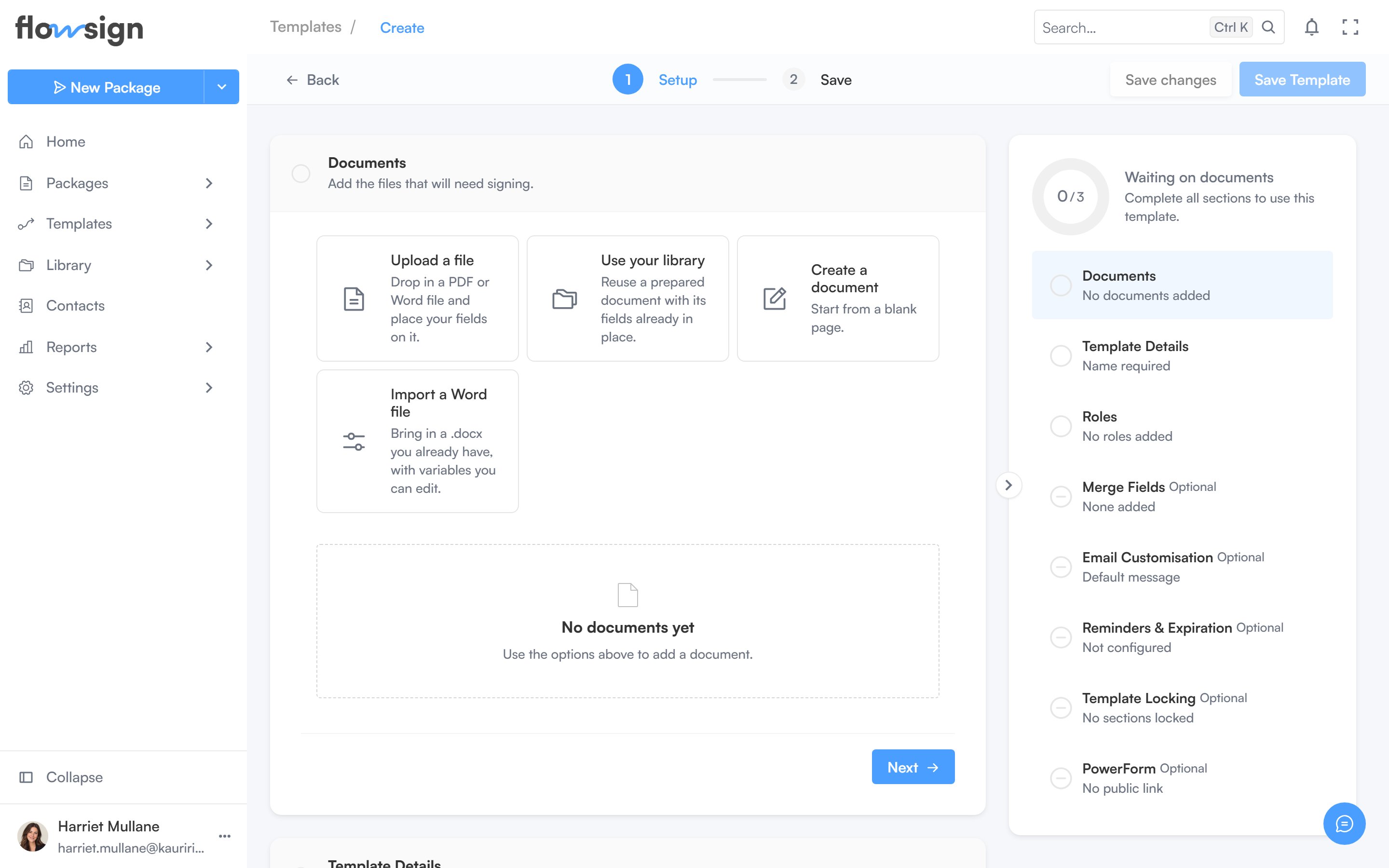
The template builder, where a workflow is assembled.
- the same document goes out many times with different recipients,
- several people must act in a fixed order,
- you want to send from the API or an automation.
1
Create the template
Go to Templates and create a new template. The form is organised into sections: Template Details, Documents, Roles, Merge Fields, Email Customisation, Reminders & Expiration, Template Locking and PowerForm.Give the template a name, an optional description and tags, then upload the base PDF in Documents.
2
Define roles
In Roles, add one role per participant. Each role has a name and an action type:
Drag roles to set their order. The section is called Roles and signing order, and its signing mode picker offers three modes:
Parallel and sequential signing need nothing more than the role cards. Workflow adds a canvas to the same section: see Workflow signing below.
3
Place fields
Open the template’s fields editor and drag fields onto the pages. Assign each field to a role and mark it required where the signer must complete it. Available field types include Signature, Initial, Date, Name, Email, Company, Title, Text, Number, Checkbox, Radio and Dropdown.
4
Add merge fields (optional)
A merge field is a named value (for example
employee_name or start_date) that you supply at send time. Each has a key, a label, an optional default value and a required flag. Values are interpolated into the template’s name and email copy when a package is created from it.5
Set email, reminders and expiry
- Email Customisation: the invitation subject and message used for packages sent from this template.
- Reminders & Expiration: Send reminder after (days after sending), Expire after (days until the package expires unsigned) and Warn before expiry (days before expiry to warn recipients).
- Template Locking: lock the documents, roles or fields so senders cannot change them when they send.
6
Activate and send
A template starts as
DRAFT. Set it to ACTIVE when it is ready to use. To send, create a package from the template, fill in a name and email for each role, supply any merge field values, and send. The package copies the template’s documents and fields, so later edits to the template do not affect packages already sent.Workflow signing
Parallel and sequential signing send the same documents to the same roles every time, and only the order changes. Choose Workflow when the package itself varies: when an answer decides which documents go out, or which role is brought in. A workflow can also write a value into a merge field, so the wording of a document changes with an answer.Opening the workflow builder
Set the signing mode to Workflow and a locked canvas appears under the role cards. Click it to open the Workflow builder: Draw workflow on an empty canvas, Edit workflow once there is something on it. The dialog has a Build and a Preview mode, a fullscreen toggle, and a Show me how this works button that walks you through whichever mode you are in.The blocks
The rail on the left has a Blocks tab and a Roles tab. The blocks are grouped:Placing and wiring cards
Click a block to pick it up and then click the canvas to drop it, or drag it straight across. PressEscape to put it back. A block you have placed is a card.
Wire cards together by dragging from the dot on the edge of one card to the next. A question card has a connector for each of its answers, so dragging from one answer’s dot sends that answer down its own path: wire it to a conditional documents card to say what that answer includes or drops. Connections that would not make sense are refused with a message saying why.
The toolbar on the canvas has undo and redo, copy and paste, Tidy the layout (which straightens the whole flow in one pass), toggles for showing conditions on cards, snapping to grid and shifting downstream cards when one is resized, plus zoom and Fit to view.
Roles
The Roles tab in the rail edits the same roles as the template’s Roles section, so a name changed in one place changes in the other. A role card on the canvas points at one of those roles. When the flow reaches it, that role is sent their link. Questions wired below it are theirs to answer before they sign, and roles wired below it wait for them to finish.Editing a card
Select a card and its settings open in the panel on the right. Documents and question cards split their settings across General and Advanced tabs. Deleting a card asks you to confirm first, and removes the lines wired to it.Fix problems before you save
When something is incomplete, the footer shows a count of things to fix. Click it to jump back to Build with the note on the canvas, and Show me frames the cards involved. While the template signs by a workflow, saving the template itself is blocked until the list is clear.Preview it
Preview runs the workflow against one set of answers. Flow view steps through choosing a scenario, the answers that scenario uses, and the resulting list of documents included and left out, with the path taken highlighted on the canvas. A legend explains the lines, and the canvas has its own zoom and fit controls. Signer view tests one person’s experience. Pick a role, pick a scenario to set the answers given before that signer’s turn, then answer the real pre-signing questions that role is asked. It then lists the documents the workflow includes for that role.Signer view stops at the document list. Reviewing and signing the documents happens on the real signing page, not in the preview.
Save
Save workflow closes the builder and keeps the canvas as you left it. Closing it another way with unsaved changes asks whether to discard them. The workflow is stored with the template, so finish the template’s other sections and save the template to keep it.Troubleshooting
A signer says they did not receive the email. Ask them to check spam or junk. The package page shows whether their session has been sent and opened. A field is not showing for a signer. Check which role the field is assigned to in the template. Only the recipient filling that role sees it. The template cannot be sent. Make sure it has at least one document and one role, and that its status isACTIVE.