

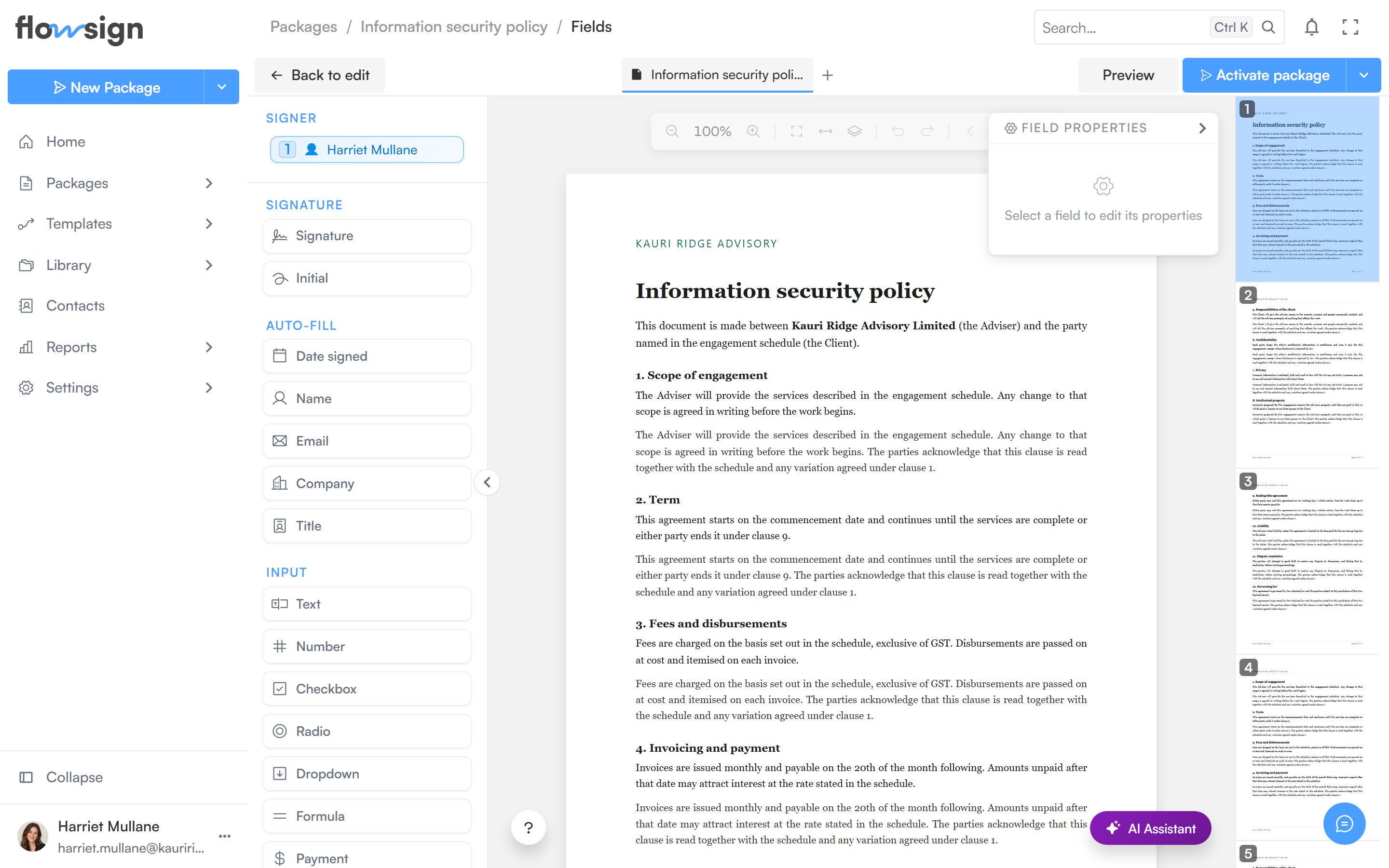
The field editor opens from a draft’s Continue to fields button, or from a sent package’s Fields tab. It shows your documents on a canvas with a field toolbar, a signer selector and a properties panel.
The field editor with the document canvas and the field toolbar

The field editor, placing fields on a draft's documents.

Signer selector

Choose which recipient you are placing fields for. Each recipient’s fields are colour-coded, so you can see at a glance who owns what across the document.

Field toolbar

Drag a field type onto the page. Available types:
  • Signature fields: Signature, Initial.
  • Autofill fields (filled automatically from the recipient’s details): Date signed, Name, Email, Company, Title.
  • Input fields: Text, Number, Checkbox, Radio, Dropdown, Comment, Formula, Payment, Label, Attachment.
  • Action fields: Approve, Decline.
Drag a placed field to move it, drag its handles to resize it, and select multiple fields with a marquee selection or Shift-click.

Properties panel

With a field selected, the properties panel edits its settings, for example whether it is required and its label or format.

AI assistant

A floating AI assistant can read the uploaded document and suggest field placement.

Saving

A Save button persists your changes to the package draft. Unsaved changes are guarded: navigating away prompts you to save or discard first.